Trellis Quick Guide
For Resource Team Leaders · Ohio State Chi Alpha
Sign in
- Type the email an admin set up for you and tap Email me a code.
- Type the 6-digit code from trellis@chialphaosu.com. It works for one hour.
On a phone, Add to Home Screen so it opens like an app.
Each week, for each CGL
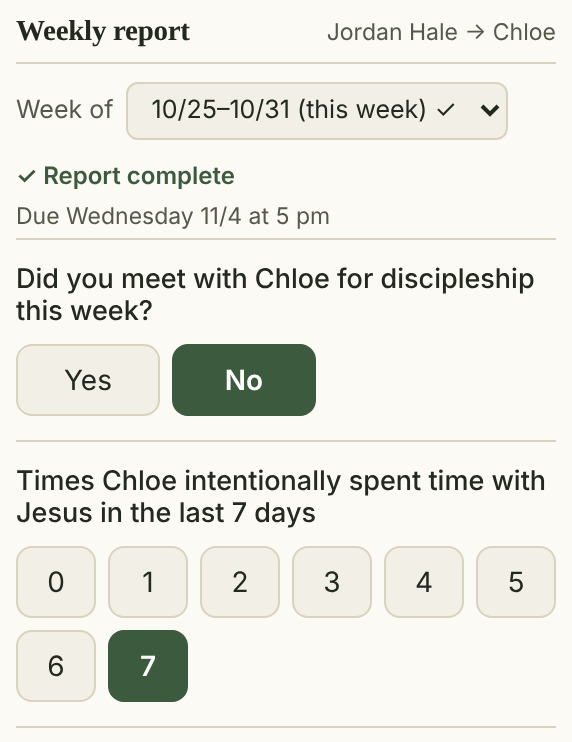
- Tap the CGL’s name. A ✓ beside it means this week’s report is in.
- Did you meet (Yes/No), and days with Jesus (0–7).
- Tick who they met with (↻ Sync from …’s log does it for you) and any Workflow cards they moved.
- Tap their rating of the last Sunday Reset or Resource Team Meeting.
Due Wednesday at 5 pm. Answers save as you tap.
Edit
Tap Edit at the top to:
- add or remove CGLs, co-leaders and pairings
- change a CGL’s discipling and fighting-for lists
- untick boxes and fix meeting log entries
Tap Done editing when finished.
Private notes
Report notes are seen only by you, your co-leaders, the CGL’s discipler and admins.
Core Group attendance
Tap Core Group ▾ beside a pairing. Orange names are members no one is discipling yet.
Core Member profiles
Under a CGL’s report, tap Core Member profiles ▾ for the people they disciple. View only; the CGL keeps them.
Comments & Headlines
Report notes, prayer requests and low-rating comments from your team, newest first.
Dashboard
All your CGLs over 8 weeks. Needs attention shows who isn’t being met with and who missed reports.
Questions?
Ask a Trellis admin, or tap Report an issue at the bottom of any Trellis page.