Sign in
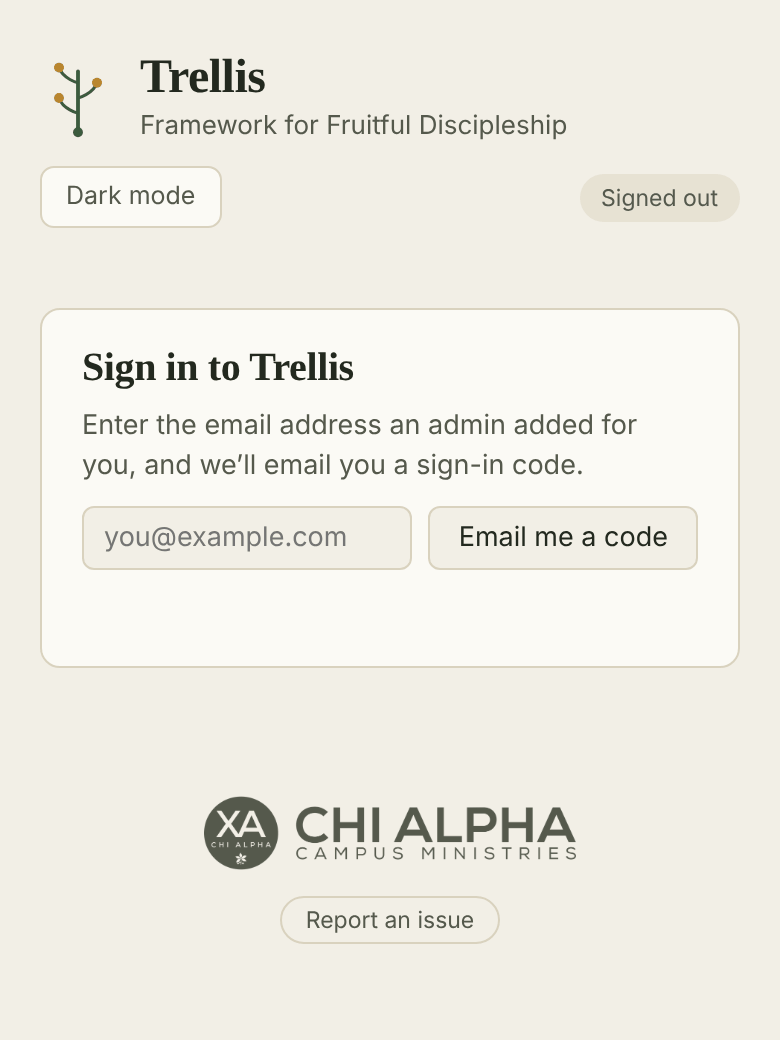
- Go to trellis.chialphaosu.com.
- Type your primary email address in Planning Center, the one on your Planning Center profile, and tap Email me a code.
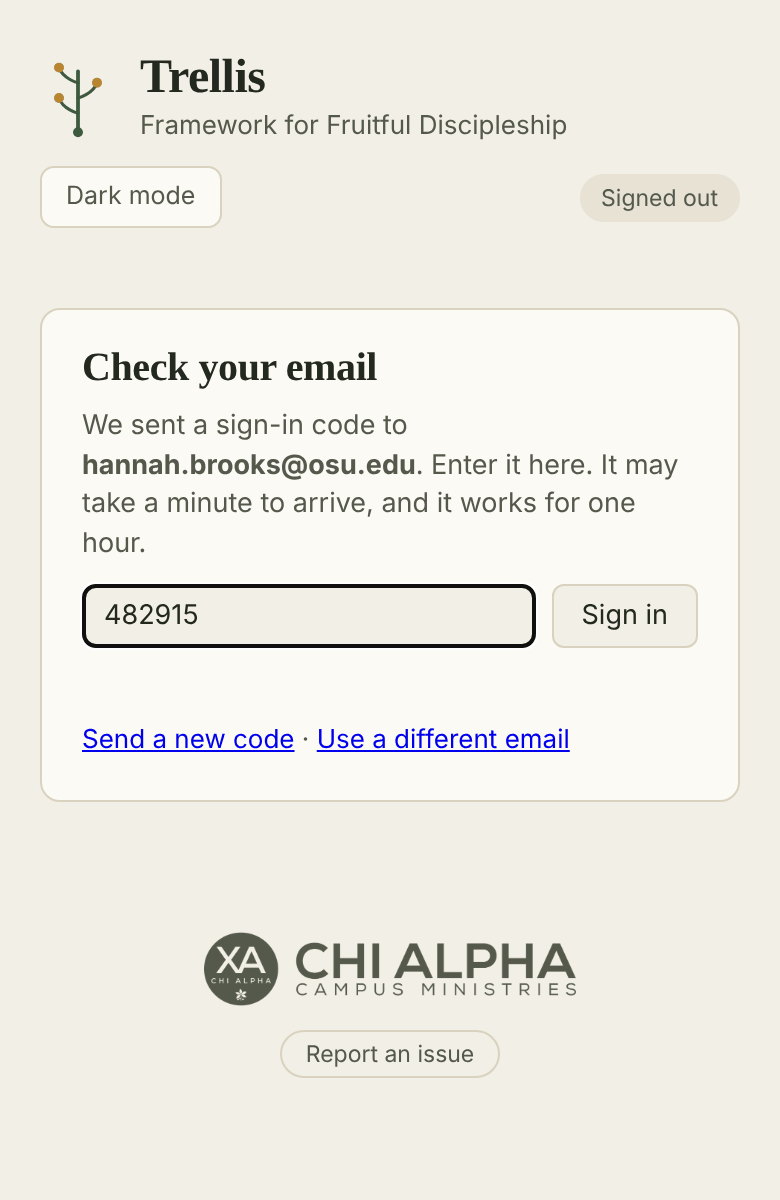
- Check your email for a message from trellis@chialphaosu.com with a 6-digit code. It can take a minute to arrive.
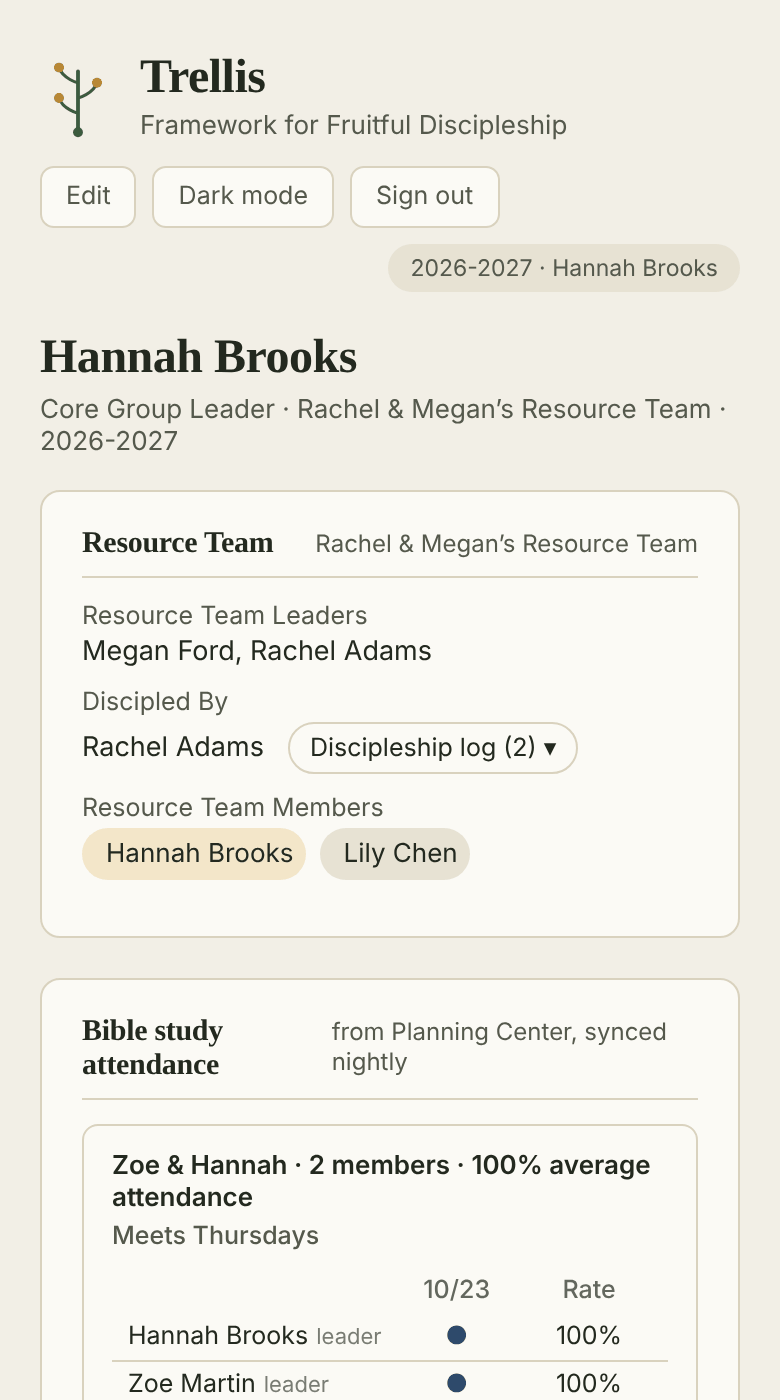
- Type the code into Trellis and tap Sign in.
A code works for one hour. If it doesn’t arrive, check your junk folder or tap Send a new code. Only the newest code works.
If Trellis says you don’t have access yet, your email in Planning Center may be different from the one you typed, or you may not be linked to Planning Center yet. Ask your Resource Team Leader to let an admin know.
On your phone, use Add to Home Screen in your browser’s share menu so Trellis opens like an app. You stay signed in on that device.